Features, all on one page
The shell follows the Codex desktop app; files and source control follow VS Code. Every picture here is recorded in the app.Agents and runtimes
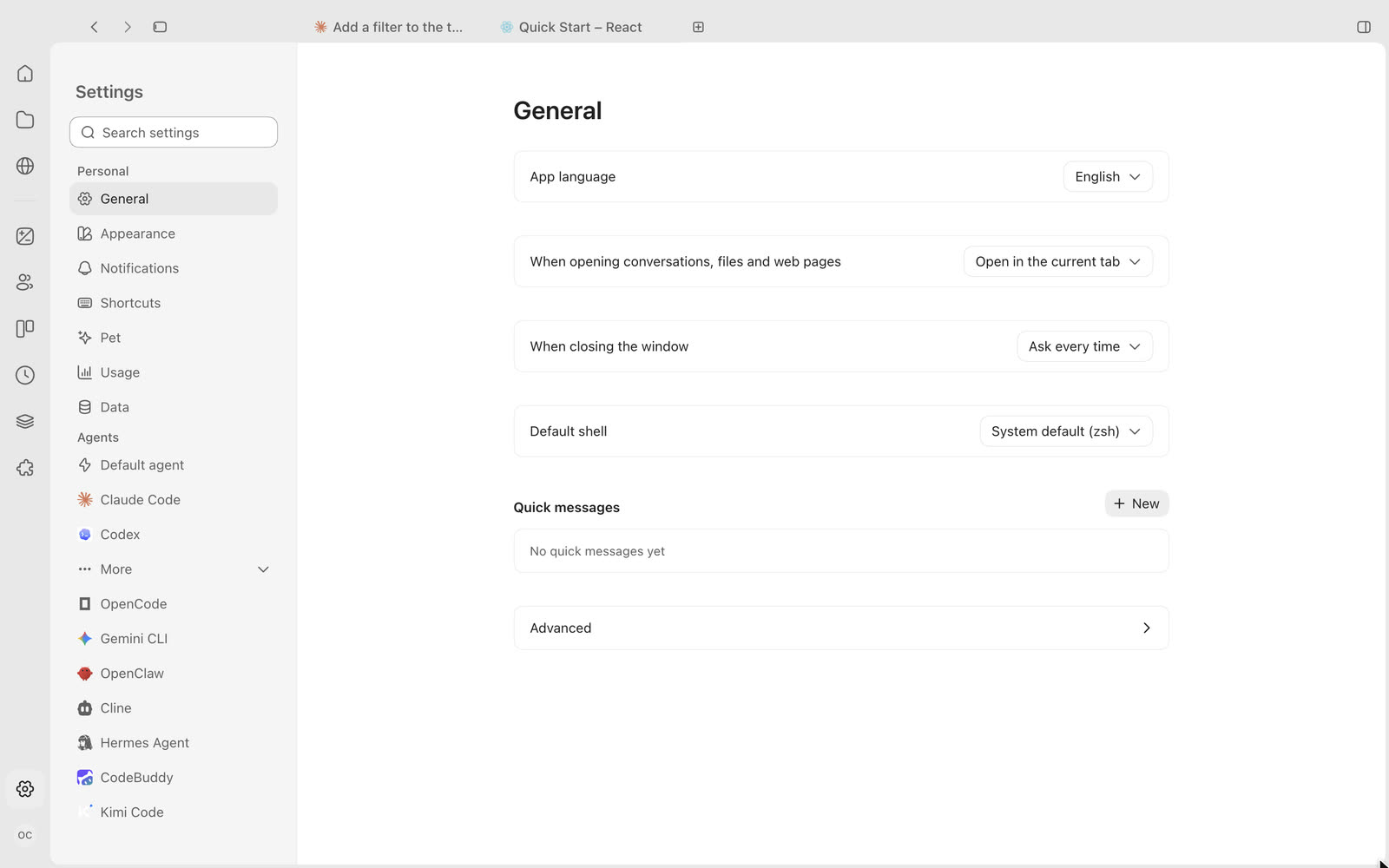
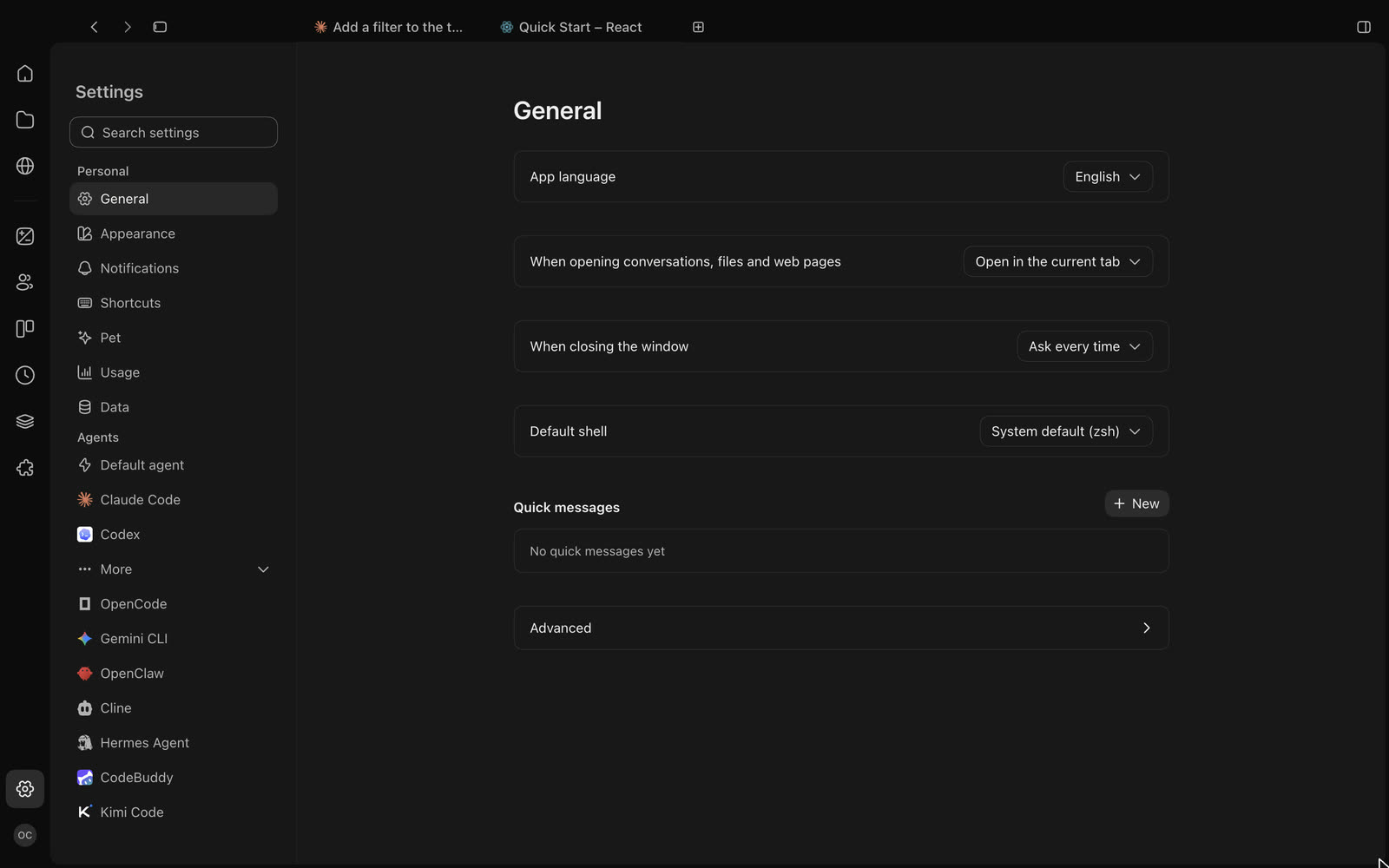
20 runtimes, one chat interface
Claude Code, Codex CLI, Gemini CLI, OpenCode, Cursor, Kimi Code, Kiro CLI and more are built in, and you can add other compatible agents.- Runtimes installed on your computer appear in the composer’s menu; one button switches runtime, model and reasoning effort.
- Each agent has its own settings, with Claude Code and Codex first and the rest under More.
- Every runtime shows its work, approvals, questions and plans the same way.
Chat
Tabs like a browser, chat like Codex
A new page turns into a chat when you send the first message, and you can keep several open.- Mention files with @, run commands with /, attach files and queue messages.
- The agent’s work folds into one “Processed” line; expand it to see one line per tool action.
- Approvals, questions and plans appear in the chat, so you answer them in place.
Computer Use
Let agents use your apps, only the windows you share
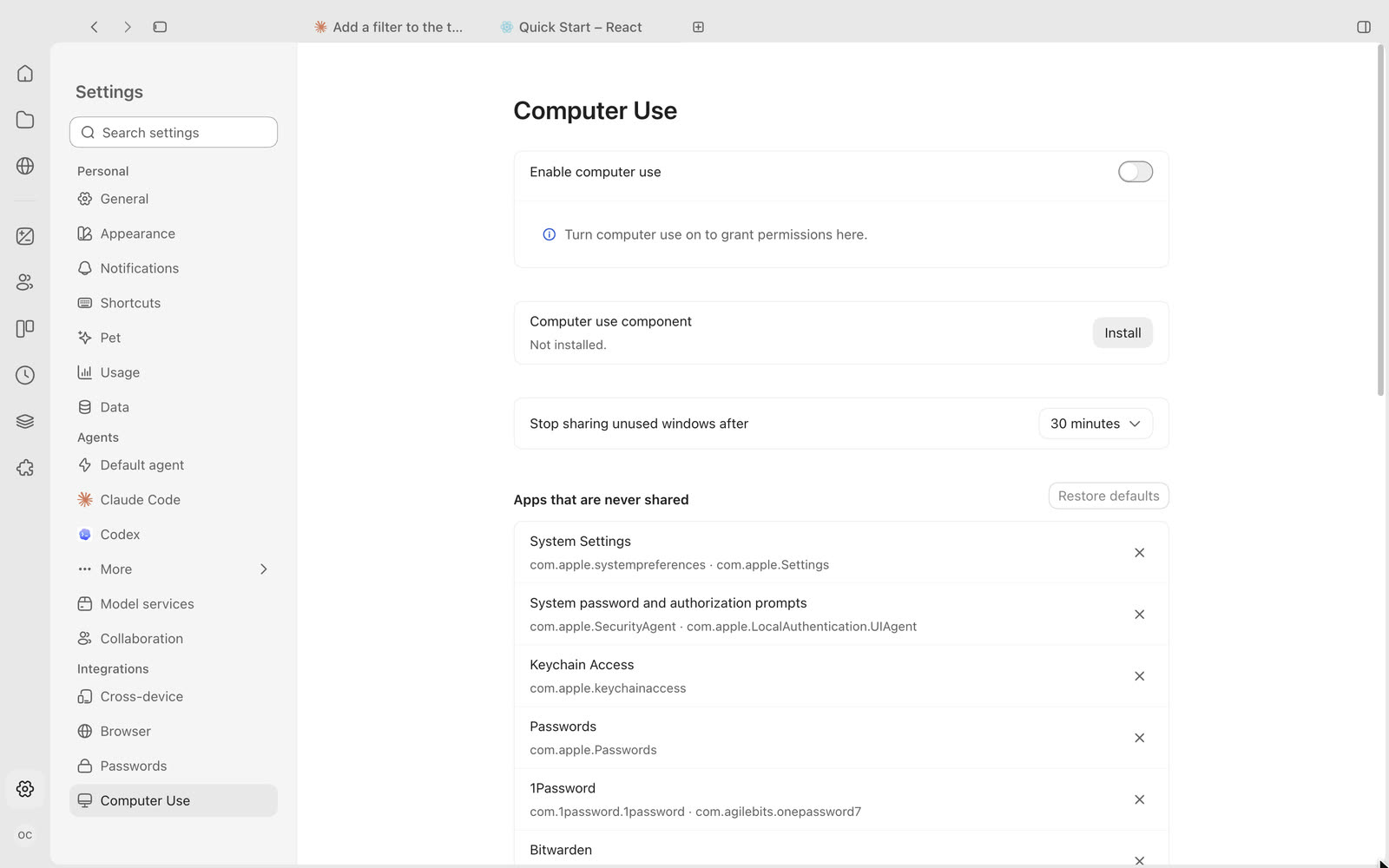
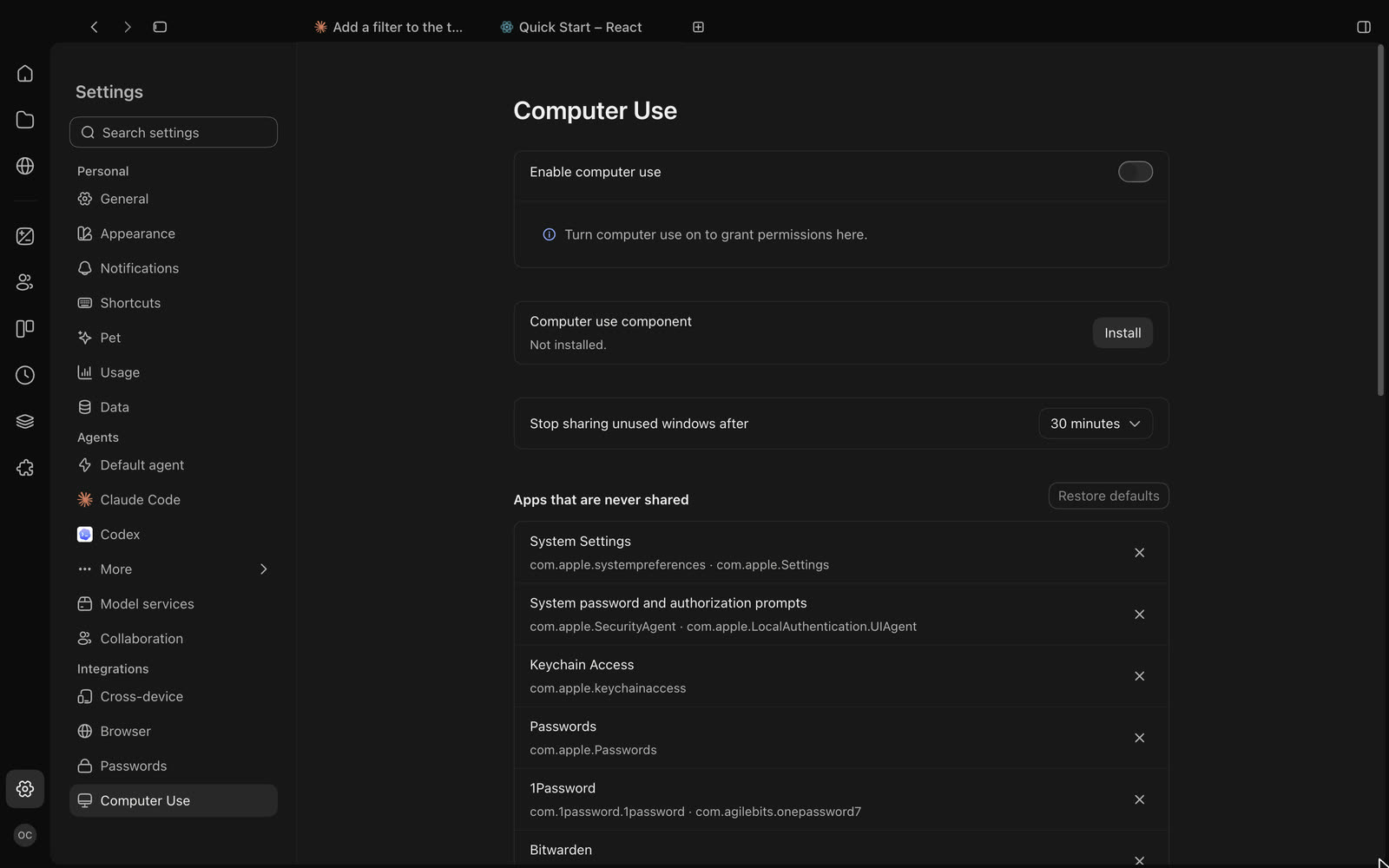
With Computer Use on, an agent can see and operate the windows you share with it; windows you don’t share stay out of its view.- Grant Accessibility and Screen Recording in Settings; the permissions go to the Computer Use component, not to OpenCodex itself.
- System Settings, Keychain Access, Passwords, 1Password and similar apps are on the list of apps that are never shared, and you can edit it.
- The floating stop bar and the stop shortcut are always there: they stop sharing every window and interrupt what the agent is doing.
- Sharing stops on its own after a window sits idle, 30 minutes by default.
Built-in browser
You and the agent on one page, and you decide what it may do
Pages you open in the app can be shared with the agent: read only lets it read the page, read and act also lets it click and type for you.- Sharing covers the current site only and ends as soon as the page leaves it.
- Settings choose how new pages are shared (share nothing, read only, read and act), and running code on a page can ask you every time.
- Site passwords are encrypted on this computer. Agents can’t read them or fill them in.
- Bookmarks, history and find in page; import bookmarks and history from your system browser.
Files and the workspace panel
Next to the chat, a second workspace
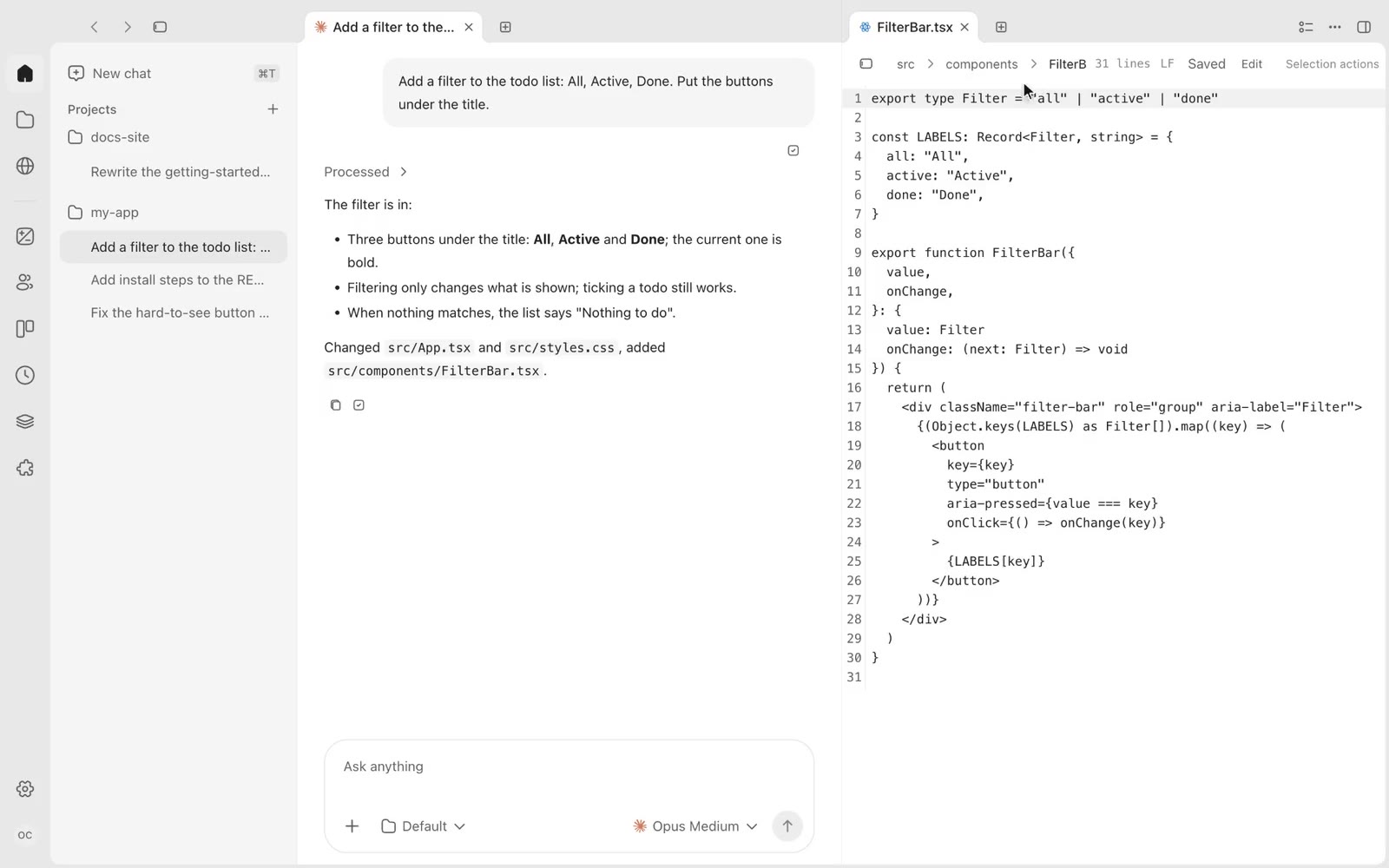
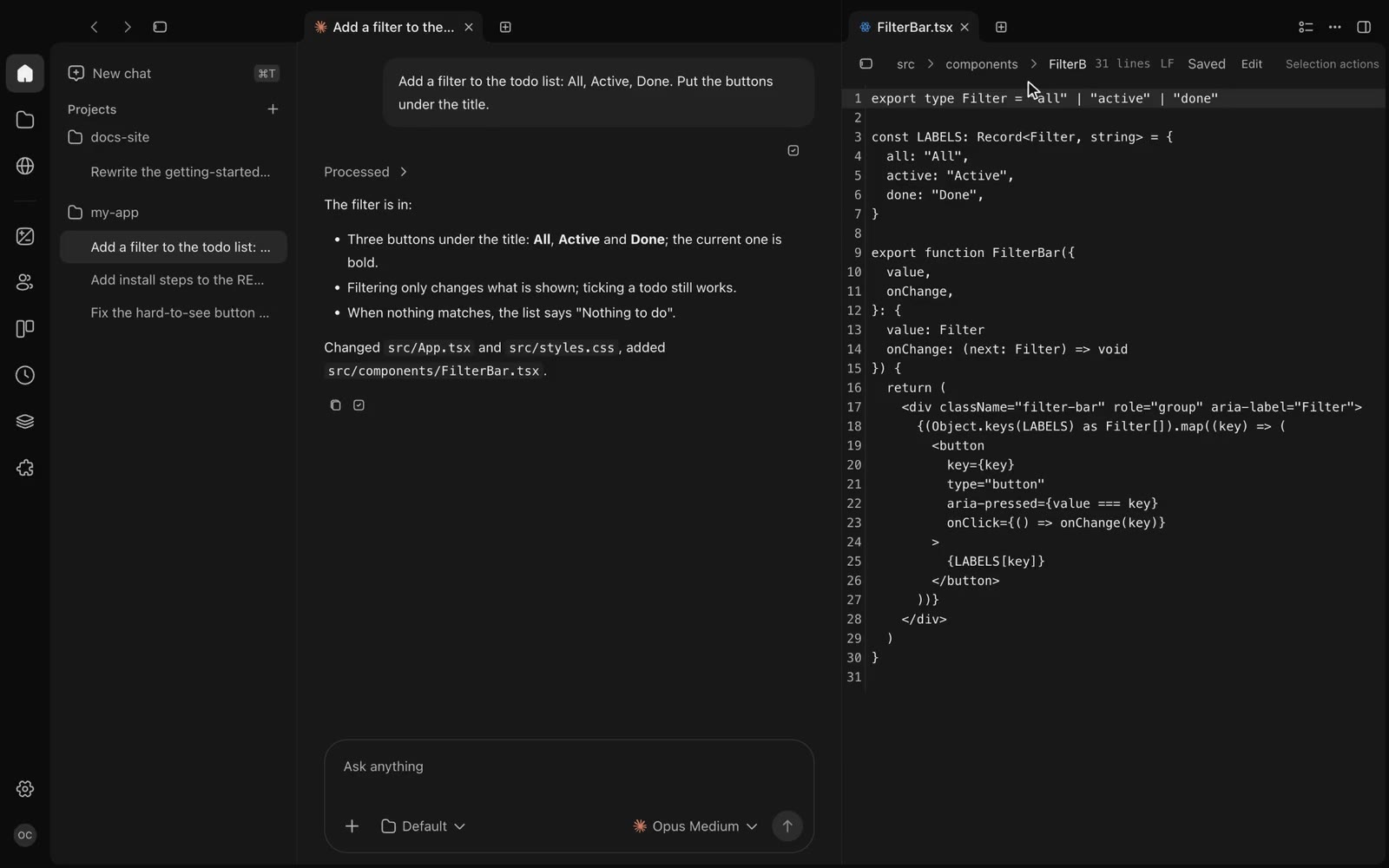
The workspace panel on the right holds files, changes, a terminal, a browser or another chat, with its own tabs.- Search the workspace panel for a file and edit it there.
- The file tree and editor are in the main window too, with changed files marked.
- Collapse the left side for more room.
Changes
See what the agent changed, then commit
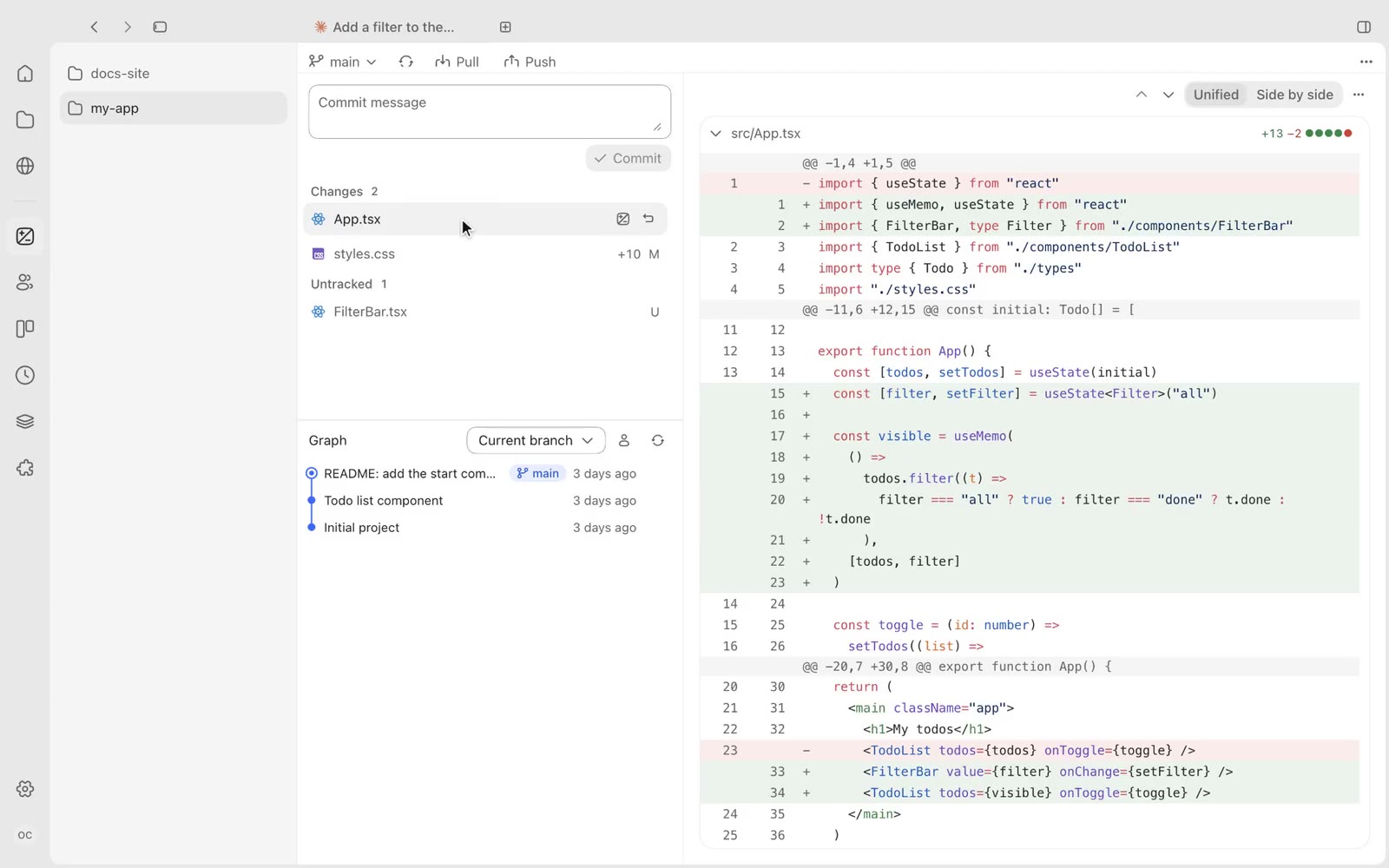
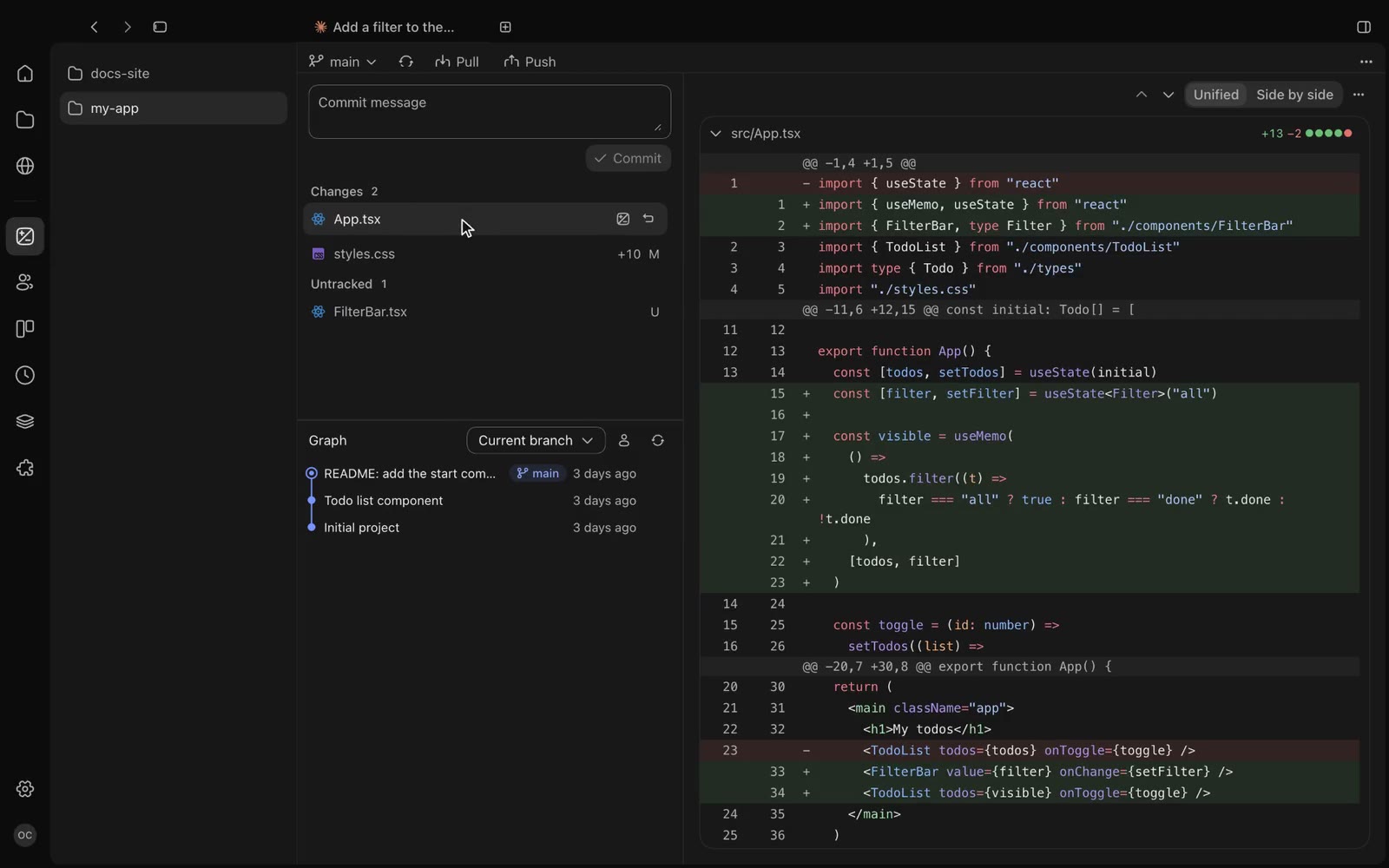
The Changes page follows VS Code’s source control: changed files, commit message, history and diff on one page.- Write a commit message, commit, pull and push, and browse the commit graph.
- View diffs inline or side by side.
Rooms
One topic, several agents on it
Put several agents in one room. @ someone to hand them the message, and see the recipients before you send.- A message without @ goes to the default member; whoever a member’s reply @-mentions gets it next.
- Members can come from different runtimes, for example Claude Code writes and Codex CLI reviews.
- Members take turns by default and can work at the same time when each has its own working copy.
- View process opens a member’s own conversation: what it read and what it changed.
Tasks
Work you don’t need to watch, handed to an agent
A task runs in its own working copy; when it’s done you review the changes and decide whether they go in.- The board groups tasks by project: To do, In progress, Needs you, Done.
- Press Start and the agent works in the task’s own worktree; when it’s done the card moves to Needs you with the number of files changed.
- Merge, follow up, defer and abandon are in the task’s details.
Schedules
Recurring work, run on time
Schedules repeat daily, on weekdays and more, for example a dependency check every weekday morning; Run now starts one at any time.- Write the prompt, pick the runtime and project, and give the rule as a cron expression if you like.
- Every run is kept in the run history, with its result and its conversation.
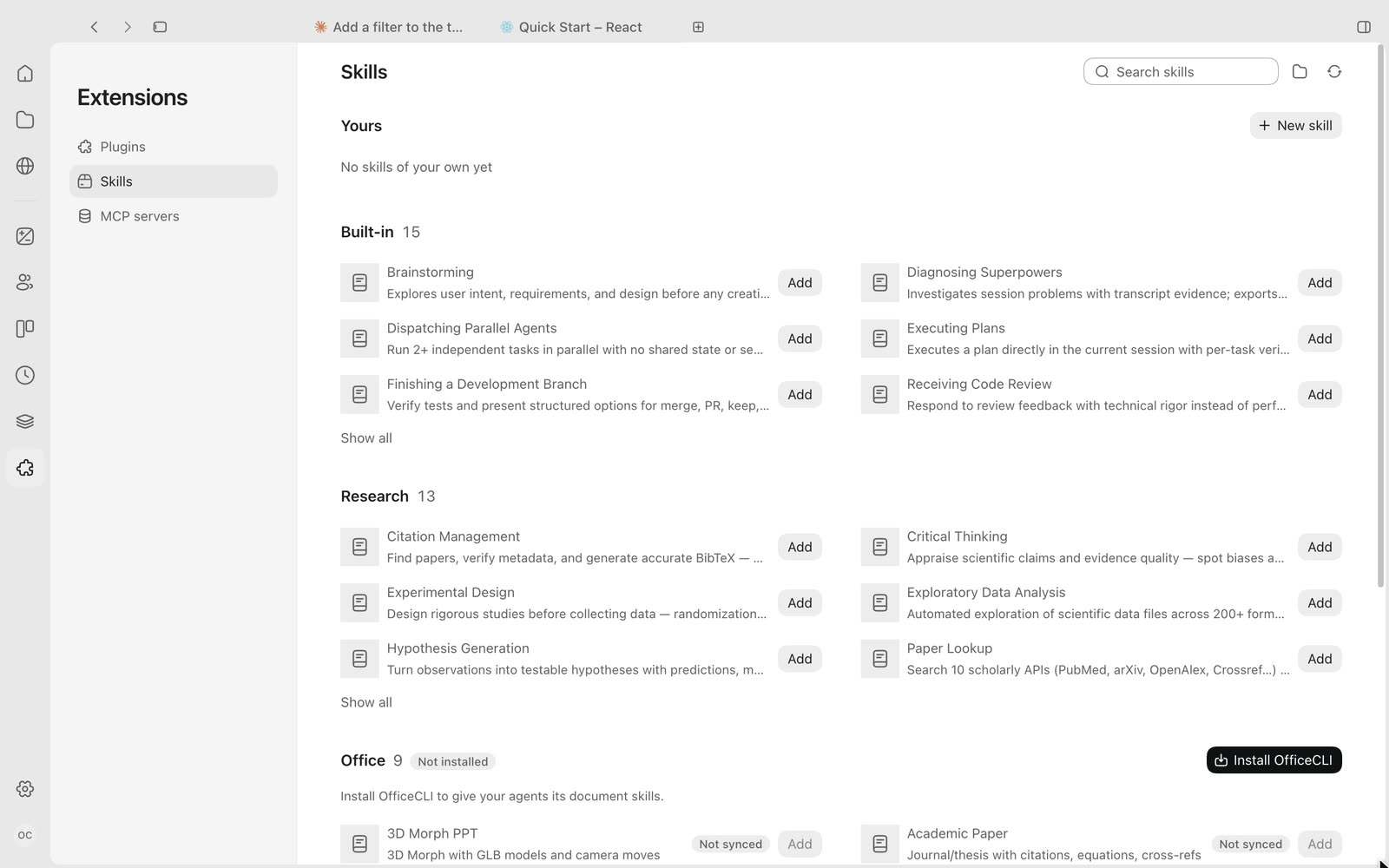
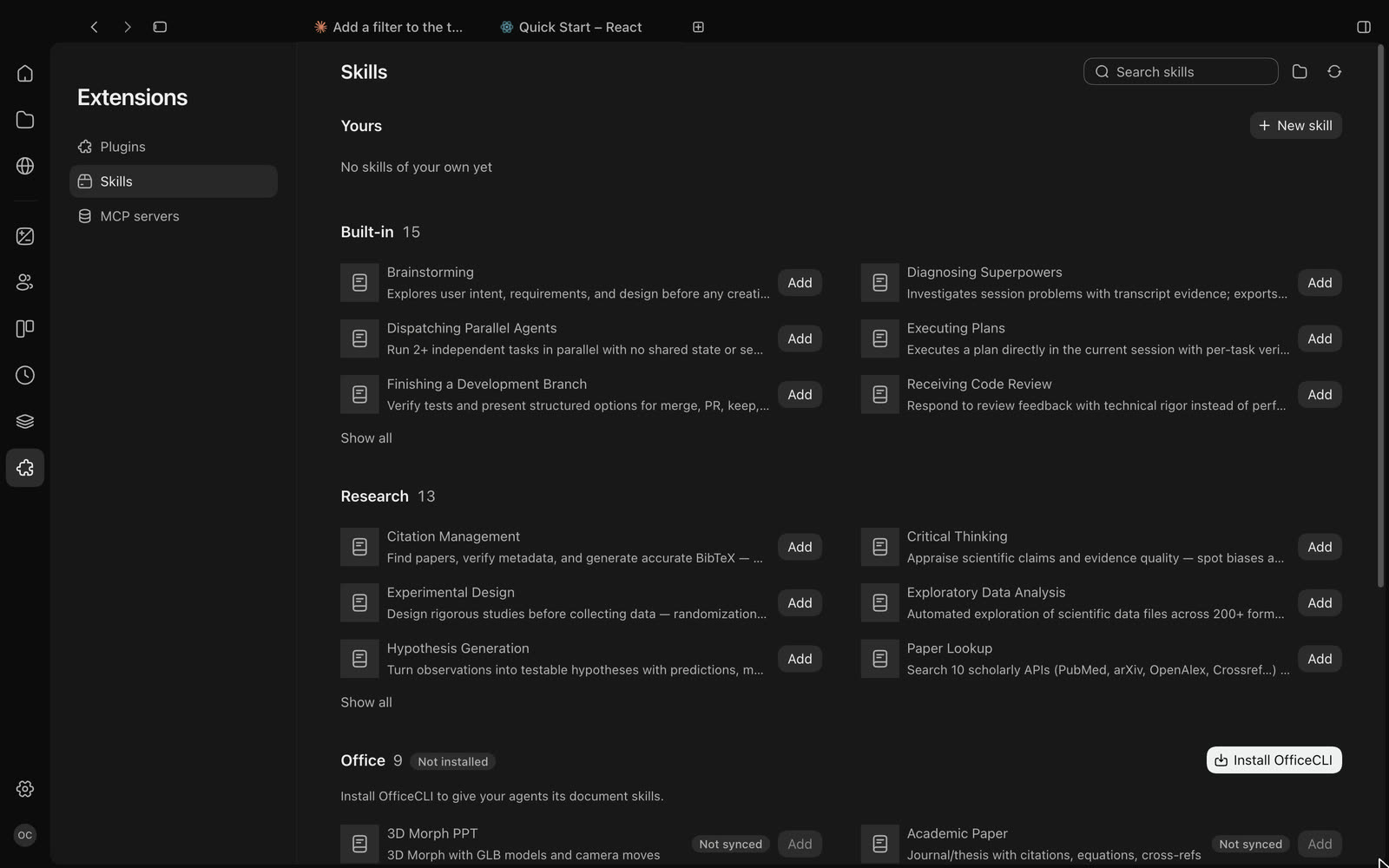
Extensions
Skills, MCP and plugins, managed on one page
Built-in expert and research skills you can add to an agent in one click, or write your own.- MCP servers are listed per agent, with where they come from and which agents they apply to.
- Install OfficeCLI and agents can work with Office documents.