In development
Agents on your computer, directed from your phone
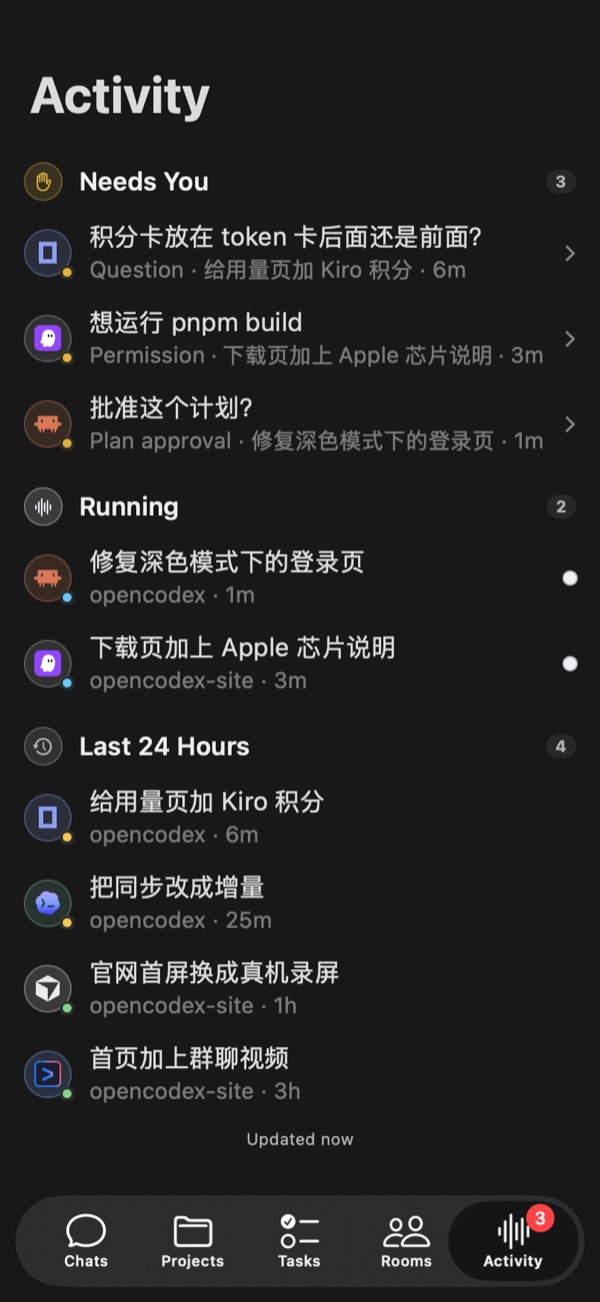
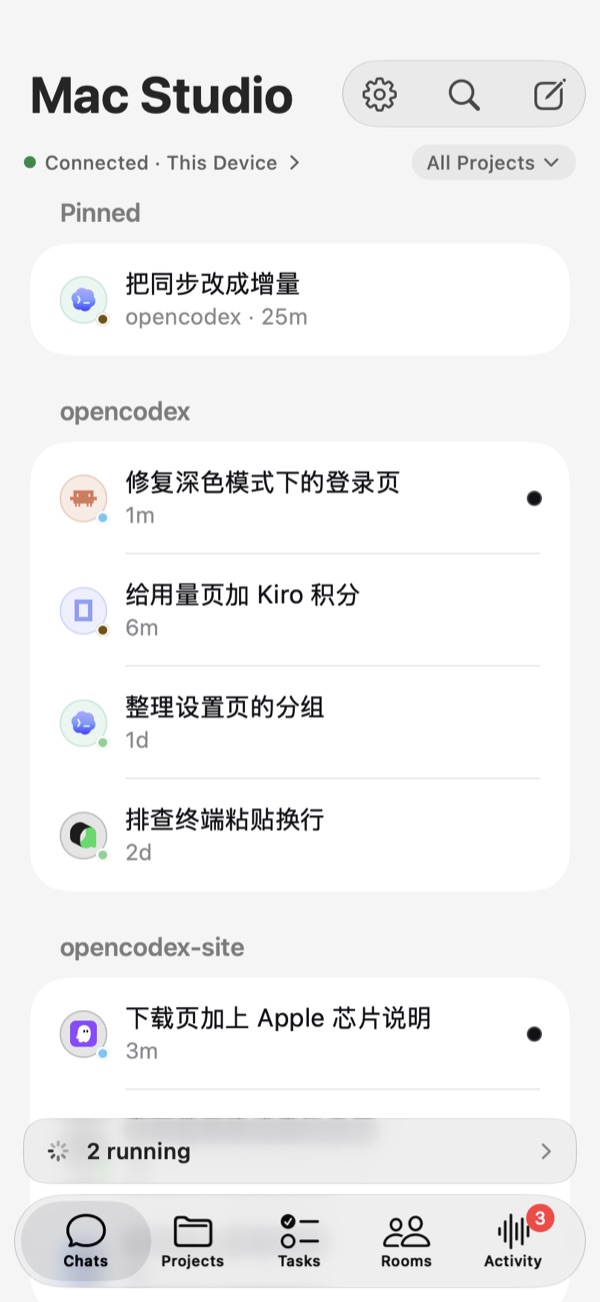
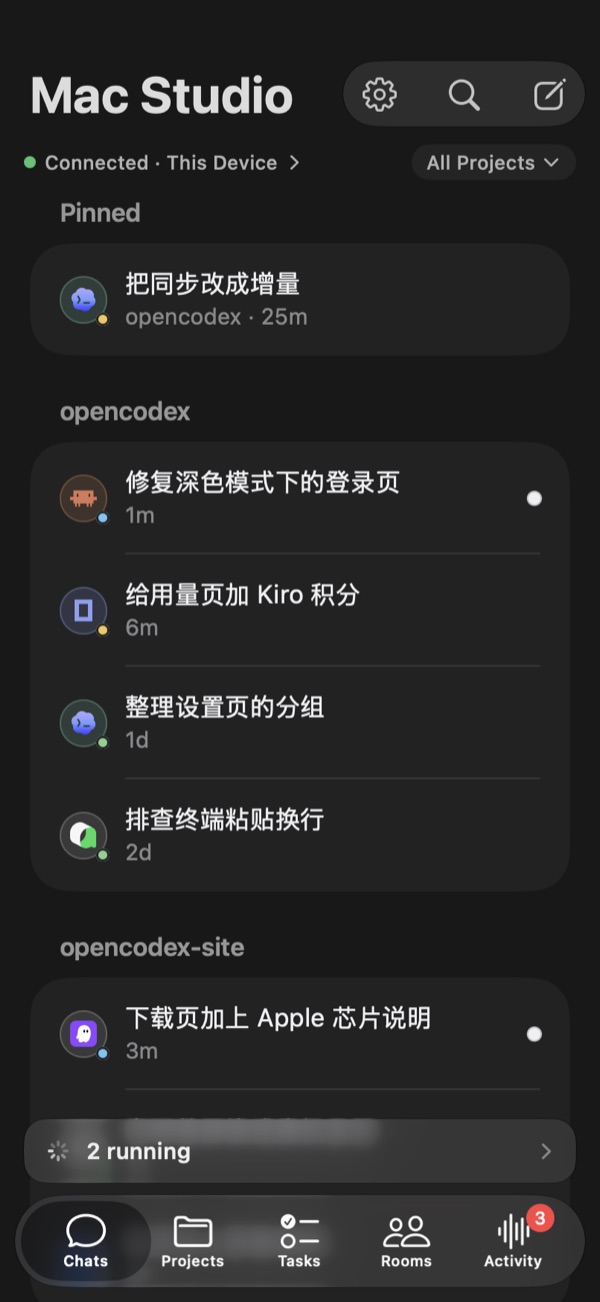
A native iOS app that connects straight to your computer: follow progress, answer approvals, send instructions, start tasks. Nothing goes through our servers.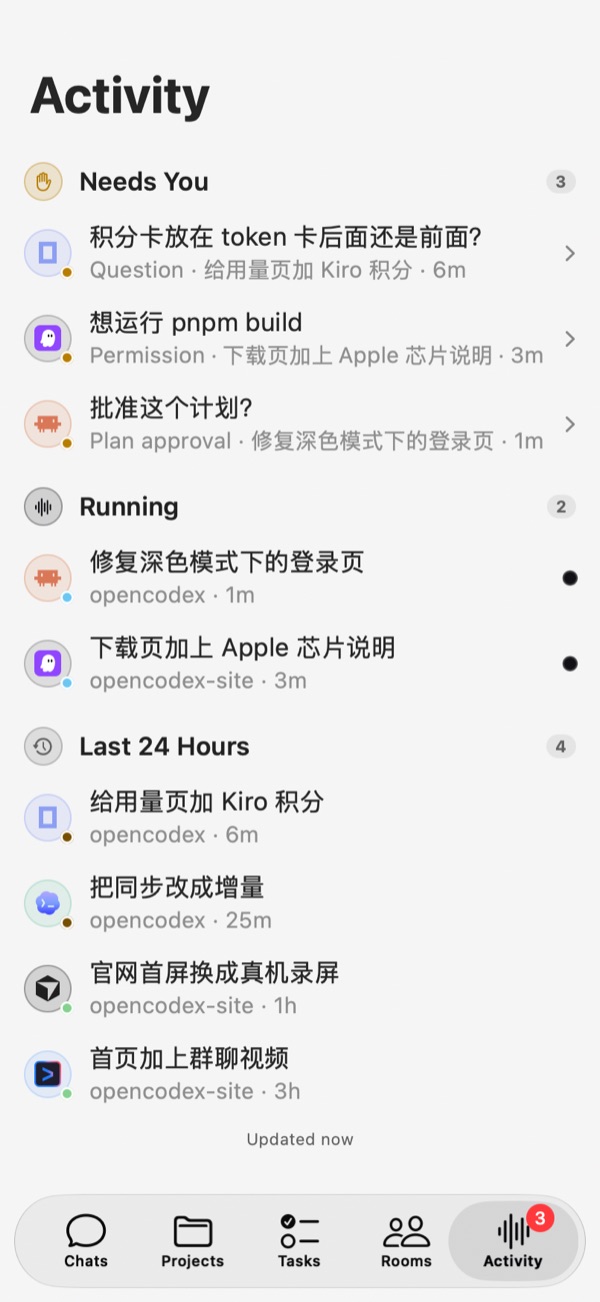
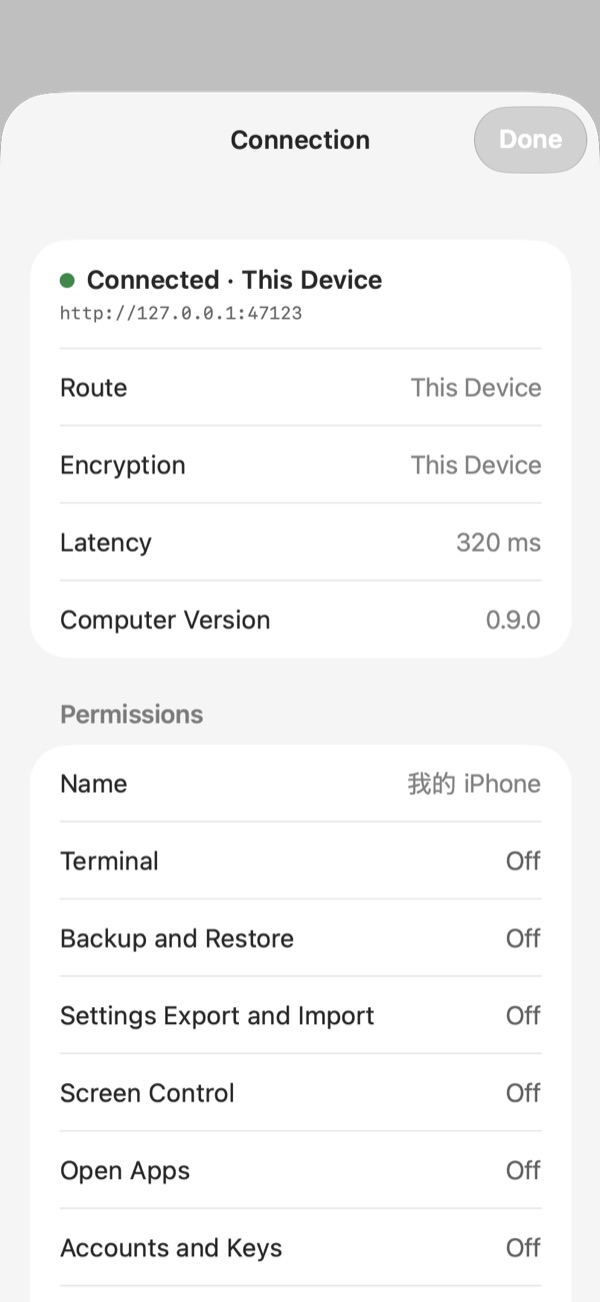
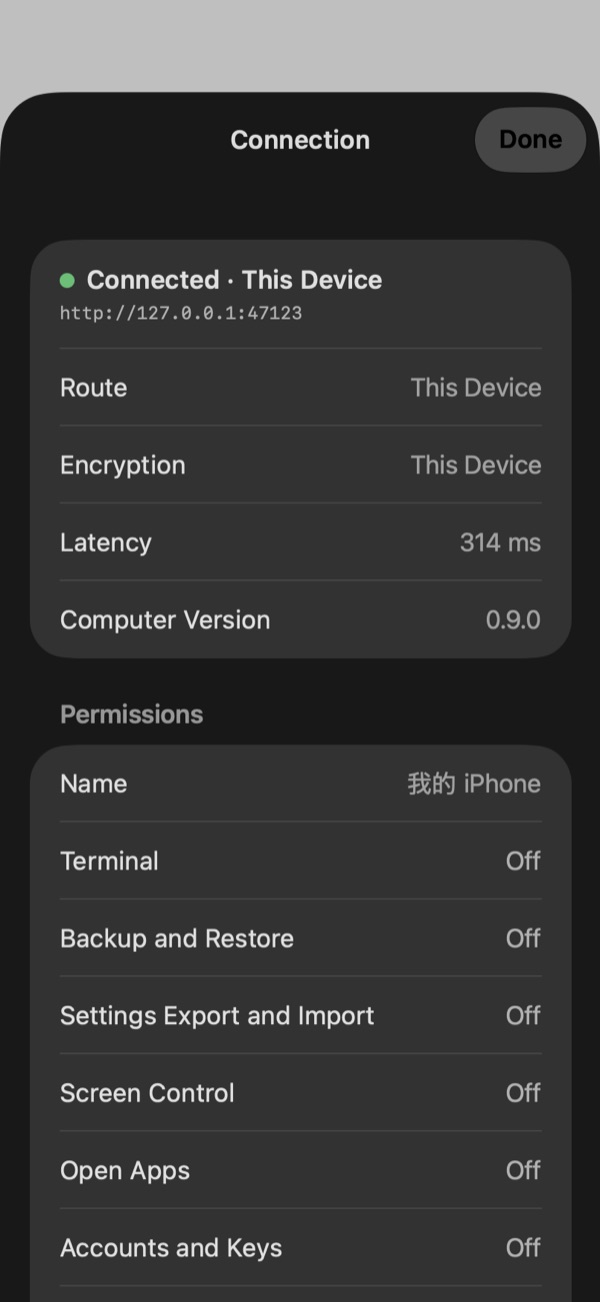
Pairing
Scan once, and the phone is connected
On the computer, open Settings › Cross-device and choose Connect phone; on the phone, scan the code from My computers.- Each phone has its own connection code, kept in the iOS Keychain and revocable on the computer.
- It connects over your local network or your own tunnel.
- Pair several computers and switch between them from the title.
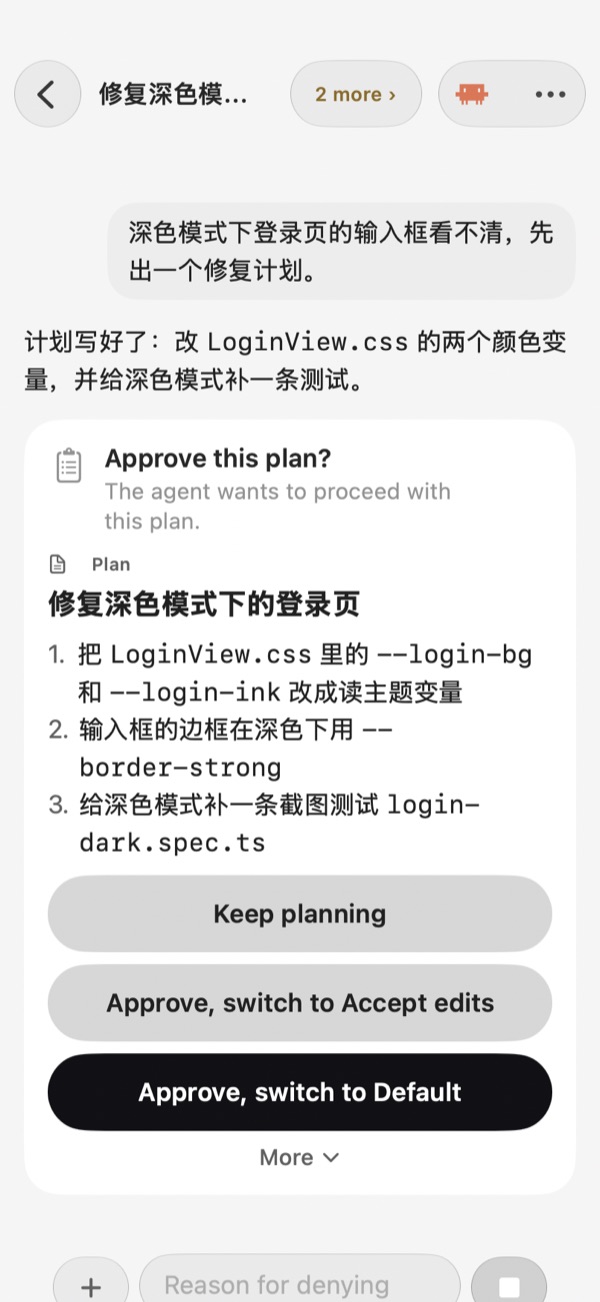
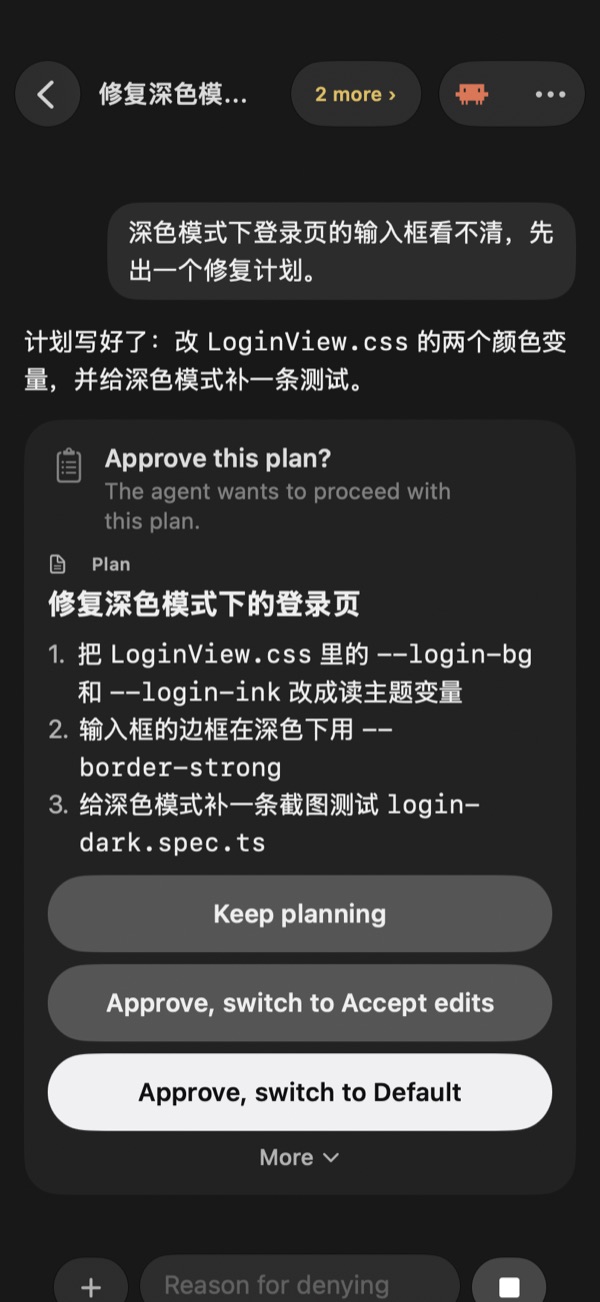
Approvals
When the agent asks, answer from your phone
Permission requests, questions and plans appear in the chat and are gathered on the Activity tab.- The buttons match the options the agent offers.
- An option that switches to full access is shown in red.
- While a conversation runs, a running bar sits above the tab bar: with one it shows the title and runtime and opens it, with several it shows the count and opens Activity.
Tasks
The same board, the same next steps
Tasks are grouped into To do, In progress, Needs you and Done; open one to see its changed files and activity.- Start, merge, retry, abandon and the other next steps match the desktop.
- The details show the runtime, branch, live progress, result, changed files and activity, and open the task’s conversation.
- Creating and editing tasks and schedules stays on the computer.
Rooms
Follow the room, and chip in
Turn on “Allow this phone to see group chats” on the computer and the phone gets a Rooms tab.- @ names in a message reach the same members as on the computer.
- Members’ status shows live in the room.
- People invited to a room use the same app: with their connection code they see only the rooms they are in, and can read, speak and see the members.
Not on the phone
Computer Use and schedules stay on the computer, and rooms are created there too.